Use MCP Servers
Connect MCP servers to LM Studio
Starting LM Studio 0.3.17, LM Studio acts as an Model Context Protocol (MCP) Host. This means you can connect MCP servers to the app and make them available to your models.
Be cautious
Never install MCPs from untrusted sources.
Heads Up
Some MCP servers can run arbitrary code, access your local files, and use your network connection. Always be cautious when installing and using MCP servers. If you don't trust the source, don't install it.
Use MCP servers in LM Studio
Starting 0.3.17 (b10), LM Studio supports both local and remote MCP servers. You can add MCPs by editing the app's mcp.json file or via the "Add to LM Studio" Button, when available. LM Studio currently follows Cursor's mcp.json notation.
Install new servers: mcp.json
Switch to the "Program" tab in the right hand sidebar. Click Install > Edit mcp.json.
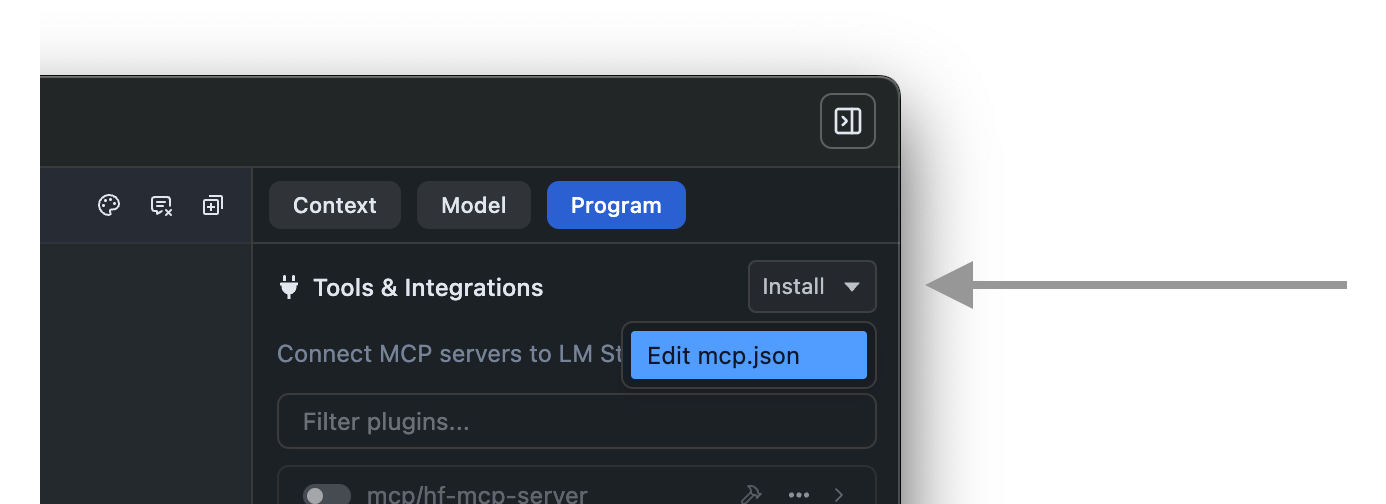
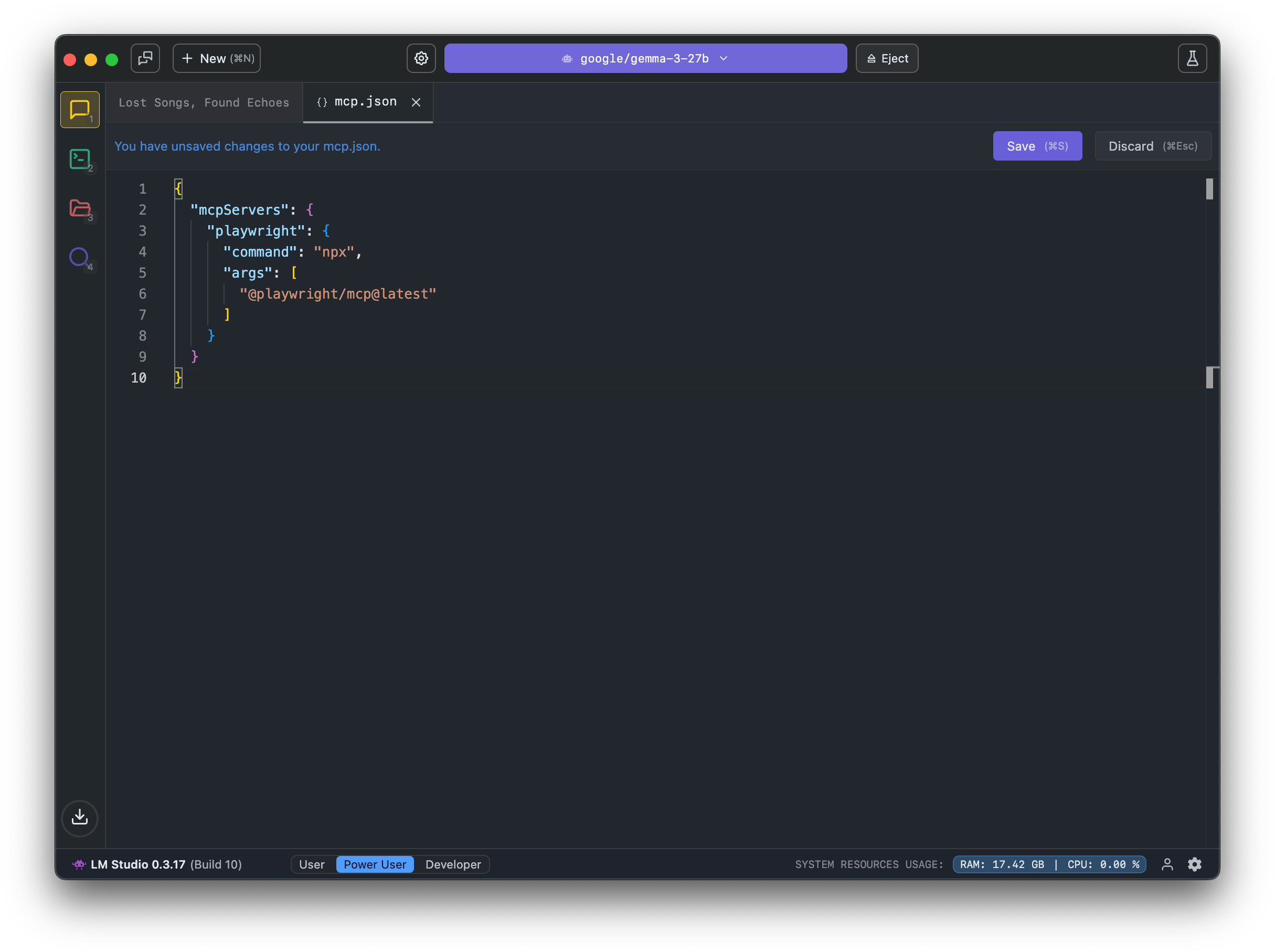
This will open the mcp.json file in the in-app editor. You can add MCP servers by editing this file.
Example MCP to try: Hugging Face MCP Server
This MCP server provides access to functions like model and dataset search.


{
  "mcpServers": {
    "hf-mcp-server": {
      "url": "https://huggingface.co/mcp",
      "headers": {
        "Authorization": "Bearer <YOUR_HF_TOKEN>"
      }
    }
  }
}
You will need to replace <YOUR_HF_TOKEN> with your actual Hugging Face token. Learn more here.
Use the deeplink button, or copy the JSON snippet above and paste it into your mcp.json file.
Gotchas and Troubleshooting
-
Never install MCP servers from untrusted sources. Some MCPs can have far reaching access to your system.
-
Some MCP servers were designed to be used with Claude, ChatGPT, Gemini and might use excessive amounts of tokens.
- Watch out for this. It may quickly bog down your local model and trigger frequent context overflows.
-
When adding MCP servers manually, copy only the content after
"mcpServers": {and before the closing}.